Create estimate
From the "File" menu, select "New Estimate" and choose the folder and file name. Your estimate file is created, ready to be filled in.
VisualOrc immediately opens the Unit Price List window, still empty, for you to enter or import your estimate's items, your choice:
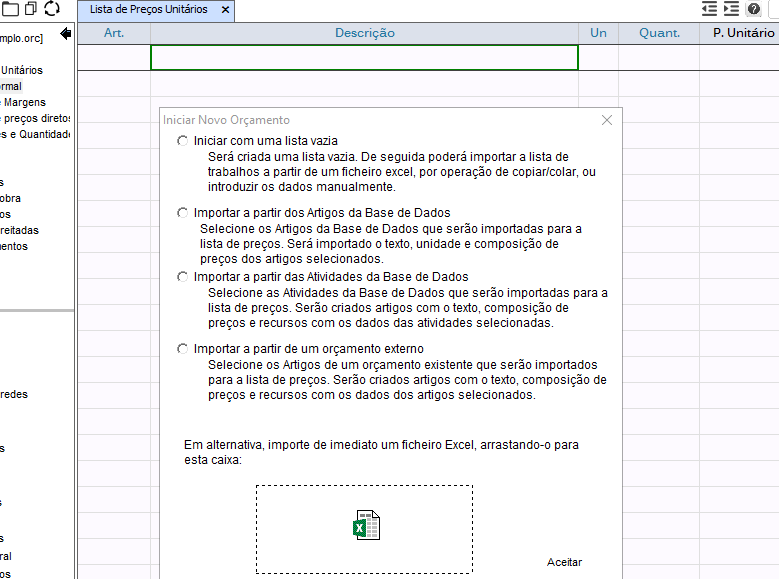
- Start with an empty list — type the items' text and quantities directly into the list's cells.
- Import items from the database — select, from the database, existing items you want to reuse in the new estimate.
- Import activities from the Database — choose the activities you want to turn into items; each activity's composite price and resources are imported automatically.
- Import from an external estimate — select an existing VisualOrc estimate and the items you want to reuse, including the full price composition.
- Import BIM (IFC) — import a BIM model and get the quantities of each construction element directly, grouped into items.
- Import from an Excel or PDF file — copy and paste directly from Excel or PDF, or import a full Excel file via Estimate > Tools > Import Price List from Excel; if the list already has items, the imported ones are added at the end.
- Import from a BC3 (FIEBDC-3) file — create a new estimate from a file in the standardized BC3 format, with chapters, items, resource breakdown and measurements.
Find all these import options in the Estimate > Tools > Import menu.
Automatic Chapter Assignment
After importing the work list, organize it into chapters without doing it item by item. In Estimate > Tools > Automatic Chapter Assignment, VisualOrc analyzes the list and recognizes titles — rows with no unit, short text, and that don't end in a colon — assigning them the correct chapter level and the following items the level immediately below.
If the list already has references (1, 1.1, 1.1.1…) or uppercase text in the titles, VisualOrc uses them to recognize levels more precisely. If chapters are already defined, you're always asked to confirm before replacing them, and the operation can be undone with Ctrl+Z.
Create Item References
With the chapters defined, automatically generate each item's reference — 1, 1.1, 1.1.1, and so on — from that chapter and title structure. Find this command in Estimate > Tools > Create Item References.
Chapters that already have a reference keep it, serving as the starting point for numbering their items; if other items already have a reference, VisualOrc warns you before replacing it.
Spell Check
Review the text of every item before closing the estimate. In Estimate > Tools > Spell Check, VisualOrc goes through each item's description, flagging and suggesting corrections for words it doesn't recognize — with a custom dictionary for construction-specific terms.
Export and Import in BC3 (FIEBDC-3)
Exchange estimates with other estimating applications through the standardized BC3 format. In Estimate > Tools > "Export to BC3 (FIEBDC-3) file", get a file with the chapters, items, unit price, resource and activity breakdown, and measurements of the open estimate.
In "Import from BC3 (FIEBDC-3) file", create a new estimate from a BC3 file from another source: the chapters, items and their breakdown are recreated automatically, with the margin calculated from the difference between the composite price and the file's price, where applicable.
Compare Estimates
Compare the open estimate with an earlier version saved in another file, under Estimate > Tools > "Compare estimates". Items are matched by code and description, so an item that was simply renumbered doesn't show up as deleted and recreated.
Get a table with the item, description, unit, quantity, unit price and total for each version, the difference, and each item's status — unchanged, changed, new or deleted. Turn on "Show only differences" to see just what changed, and export the table to Excel.