Compose estimate prices
Compose each item's price from existing resources and activities, or create them without switching windows — never losing control over the item's cost price, margin, and unit price.
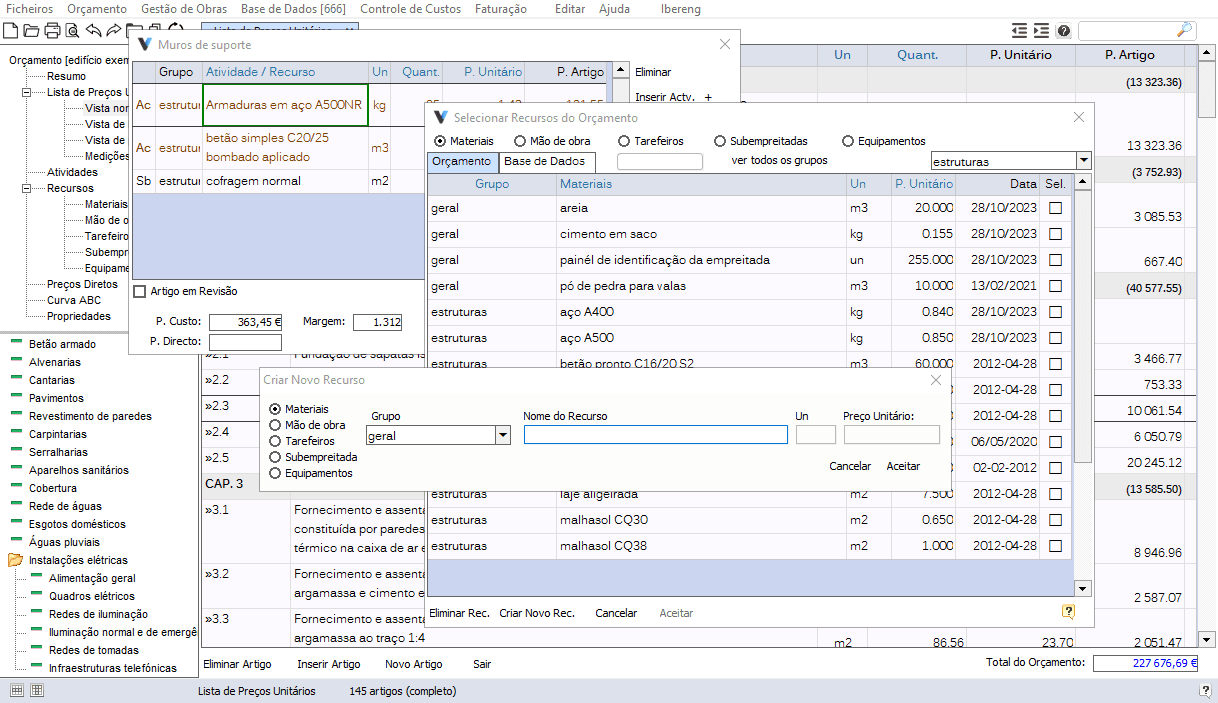
Double-click the item in the Unit Price List to open the price composition window. From there, your choice:
- Import resources from the Database — "Insert Res." (Ctrl+A/S), and choose the existing resources in the Database tab, filtering by type and group.
- Import activities from the Database — "Insert Act." (Ctrl+Q/W), the same way, bringing in the activity's full composition.
- Create a new resource or activity — the "+" next to "Insert Res." or "Insert Act." creates it immediately, without opening the selection window; it belongs only to this estimate.
- Create a quick composite price — "Insert Mat+Labor" (Ctrl+E) creates a new material with the item's name and the labor resources already used in the estimate; "Insert Sub" (Ctrl+D) creates a subcontract with the item's name. Both skip composing the price piece by piece.
- Enter direct prices — switch to the Direct Prices view and paste or type prices from external lists, bypassing resource and activity composition.
- Suggest composition — new in this version: the "AI" button (Ctrl+1) searches your own previous estimates for items with a similar description and suggests the composition already used.
Suggest Composition
In the item's composition, click the "Suggest Composition" button or press Ctrl+1: VisualOrc searches your previous estimates for items with a similar description and suggests the composition already used — resources, activities and direct prices included. Review the suggestions and click "Accept" to apply them to the item.
A database administrator must first index the folder containing the company's estimates, using the "Index Folder" button in the suggestions window itself — an indexing shared by all users. From then on, only new or changed estimates are read again, and VisualOrc warns you when the index is more than two months old.
Explode or Transform into Activity
Two reciprocal operations on an item's composition. "Explode Activity" replaces an activity with its own resources and activities, so you can adjust them individually without changing the original activity — only possible when the item contains just that activity, and if its quantity isn't 1, VisualOrc warns you before continuing.
"Transform into Activity" does the reverse: it gathers all the item's resources and activities into a single new activity, with a name derived from the item.
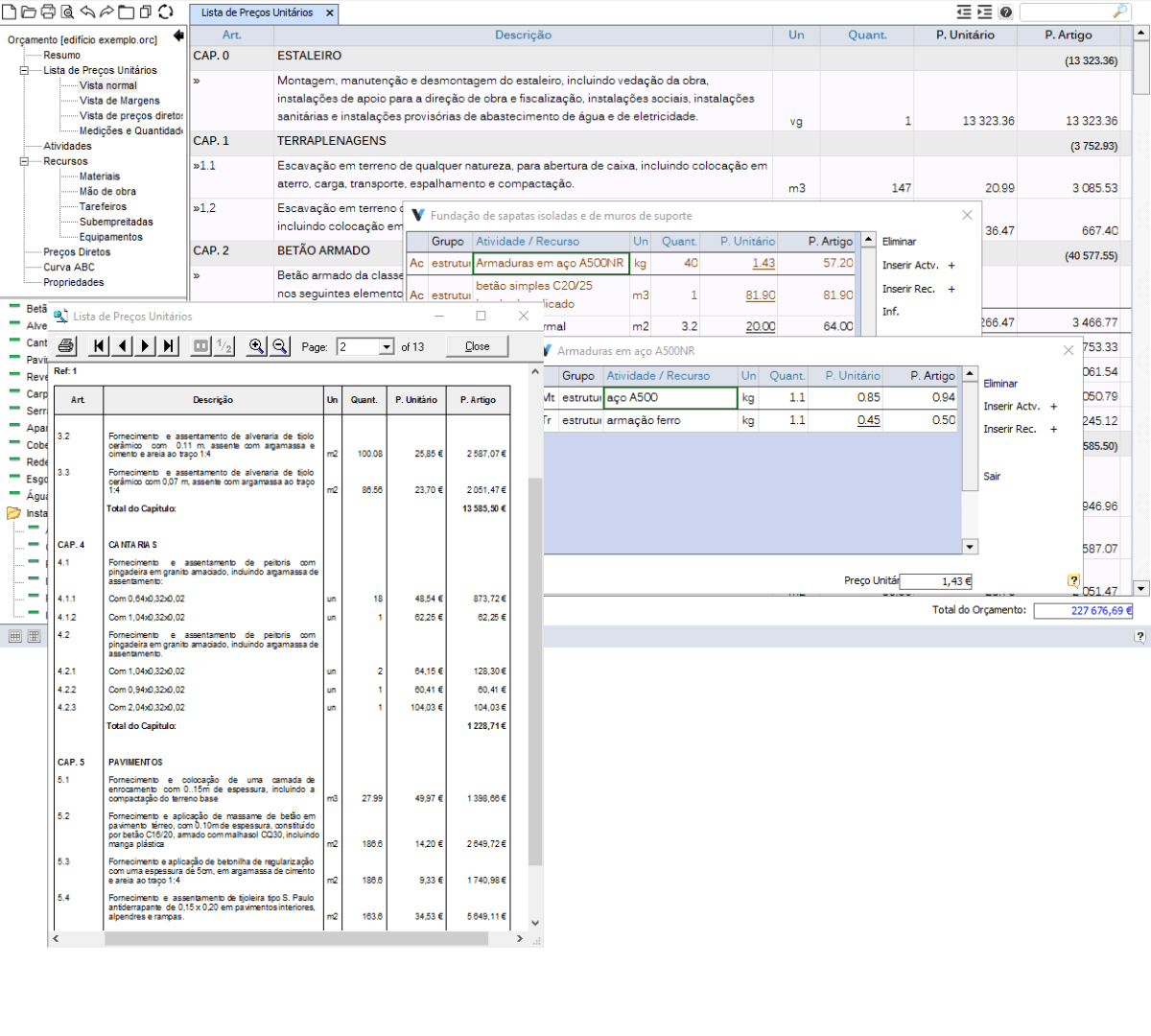
Duplicate or Replace Resource
Duplicate an activity or a resource in the composition when you need a very similar variant, without composing it again. Or replace a resource with another directly — choose the replacement resource and VisualOrc removes the previous one, keeping the quantity already set.
View Usage and Update the Database
Before changing a resource or activity, check "View Activity Usage" or "View Resource Usage" to see which other items and activities in the estimate already use it.
After creating or adjusting a resource or activity in the estimate, use "Copy/Update to Database" to make it available for future estimates. If it already exists in the Database, its usage quantity and unit price are updated.
Remarks and Item Under Review
Turn on "Observ." to note remarks about the item's composition, later visible in the price list as a red mark next to the item. Start the remark with "!" to turn the item green in the list, or with "?" to turn it blue — use these codes to flag aspects of the composition.
Check "Item Under Review" to mark the item in red in the price list; printing the estimate always warns when there are items under review.
Keyboard Shortcuts
Compose prices without taking your hands off the keyboard: Ctrl+Q/W inserts an activity, Ctrl+A/S inserts a resource, Ctrl+E creates the quick Mat.+Labor composite price, and Ctrl+D creates the quick subcontract.