Introduce direct pricing
Enter prices into the estimate that already come finalized from outside — subcontractor proposals, supplier price lists — without rebuilding them through resource and activity composition.
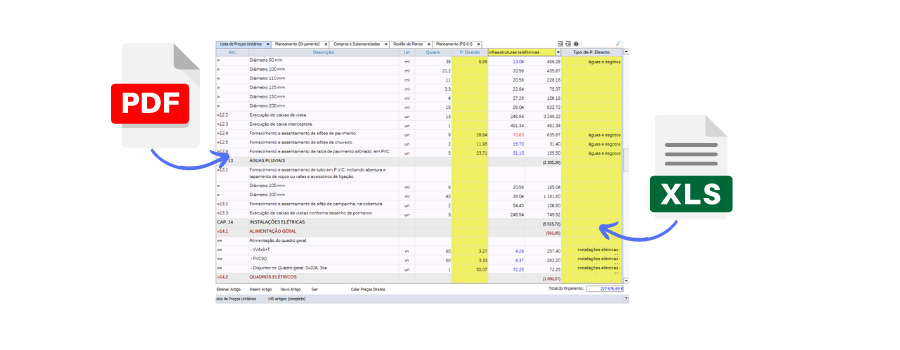
Switch to the Direct Prices view (Estimate > View > Direct Prices View) and, your choice:
- Type the price directly — choose or create the direct price type in the yellow list, and type the value into the item's cell.
- Paste from an Excel or PDF list — copy the cells (in a PDF, select the column while holding Alt) and use "Paste Direct Prices"; the paste advances item by item with the Enter key.
- Export from a comparative map — enter the various suppliers' prices into the comparative map and export the chosen proposal's prices directly to the price list.
Always check that the imported total matches the external list's value, in the Estimate > Direct Prices window.
Manage Direct Price Types
In Estimate > Direct Prices, see every direct price type already entered and its total value. "Insert Direct Price" creates an empty type, to use later in the price list. "Delete Direct Price" removes an unused type — you can't delete a type already assigned to items, nor end up with no direct price type at all in the estimate.
"Apply Discount" applies a percentage between -60% and 60% to a direct price type, immediately affecting every item that uses it; a negative value removes a discount already applied. The type's name is updated with a reference to the discount, so what changed always stays visible.