Quantity Takeoff
For each item in the price list, get the quantity directly from the project drawings, instead of calculating it by hand.
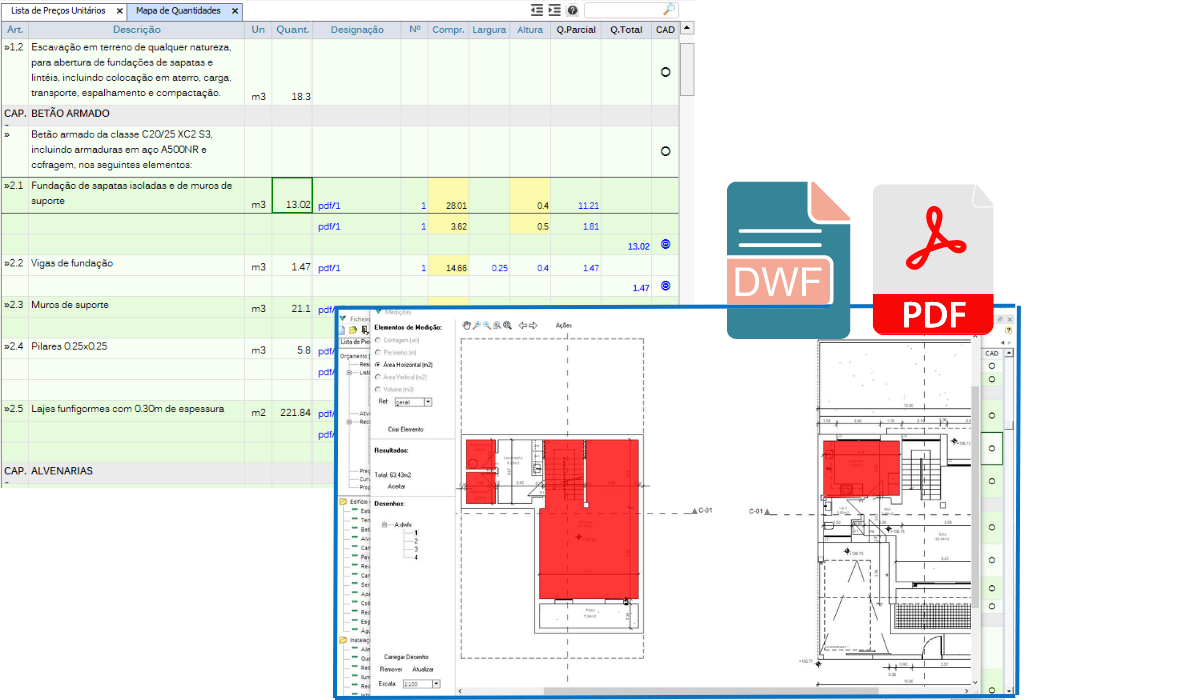
Measure directly on the drawing, or use the integrated measurement map, your choice:
- Integrated measurement map — enter the quantities manually in the item's measurement grid, independent of the Unit Price List; the list is updated immediately.
- Direct measurement on PDF drawings — measure directly on the drawing itself, by perimeter, horizontal area, vertical area, volume or element count.
- Direct measurement on DWF or DWFx drawings — the same direct measurement, for drawings in these formats.
- Multiple drawing files — use several drawings in the same estimate, to measure elements from different specialties, such as architecture and structures, on the same item.
Find the measurement map under Estimate > Measurements and Quantities, or via the "Measurements and Quantities" shortcut in the left sidebar.
Measure on the drawing
- Load the drawing — in "Load Drawing", select the DWF, DWFx or PDF file. The drawing is saved inside the estimate file itself, ready to measure on any computer without depending on the original file.
- Set the scale — choose a scale from the list (1:10 to 1:5000) or, if you don't know it, use "Check Scale": draw a line over a known dimension on the drawing and enter its real value; VisualOrc calculates the scale from there.
- Choose the measurement type — Perimeter (m), Horizontal Area (m²), Vertical Area (m²), Volume (m³) or Count (un). For vertical area and volume, also enter the height (H); VisualOrc automatically multiplies it by the length or area you draw.
- Measure — click "Create Element" and trace over the drawing itself: a line for perimeter or vertical area, a closed outline for horizontal area or volume, or a click on each element for count. The result is added immediately to the item's quantity.
Reference Measurement
Organize an item's measurements by reference — for example, by floor or by block — instead of mixing them all together. Before drawing, choose the active reference in the "Ref:" list; each reference has its own color, to visually distinguish the elements on the drawing. If you need a new one, select "create new reference" at the end of the list and enter its name.
All elements you draw from then on are linked to that reference. Under "Actions > Show only the active ref.", view only the elements of the chosen reference on the drawing, without the noise of the rest.
Deduct Measurement
Deduct openings and other elements to subtract without having to calculate the difference by hand — for example, the area of a window or a door to subtract from a wall's area. Before drawing the element to deduct, check the "to deduct" option; its value is then subtracted, instead of added, from the item's quantity. Turn the option off to go back to adding the following elements normally.
Other actions
In the measurement map's "Actions" button, you also have access to:
- Monochrome — shows the drawing in shades of gray, so the colored measurement elements stand out better.
- Show all from this chapter — shows on the drawing the measurement elements of every item in the current chapter, not just the one being edited.
- Show only the active ref. — shows on the drawing only the elements of the reference chosen in "Ref:", without the noise of the rest.
- Copy elements to another page — duplicates the current page's measurement elements onto another page of the same drawing.
- Delete all from this page — deletes every measurement element on the current page.
- Delete all from this item — deletes every measurement element of the current item, across all pages of the drawing.
- Link to elements of another item — reuse measurements already taken on another item, instead of repeating them — for example, the same wall measured for plastering and for painting. Choose the source item; that item must already have elements of the same measurement type. Once linked, the option becomes "Remove link to another item".
- Print pages with measurements — prints only the drawing pages that have measurement elements.
- Print all pages — prints every page of the drawing, even those without measurements.
- Create PDF — exports the drawing, with the measurement elements visible, to a PDF file.
Verification or Replacement Mode
Choose how measurements calculated on the drawing affect the price list. In replacement mode, the calculated quantities are automatically entered into the Unit Price List. In verification mode, the calculation doesn't change those quantities — use it to confirm existing measurements without rewriting them.
You can switch between the two modes at any time, using the option button in the measurement map's bottom menu.